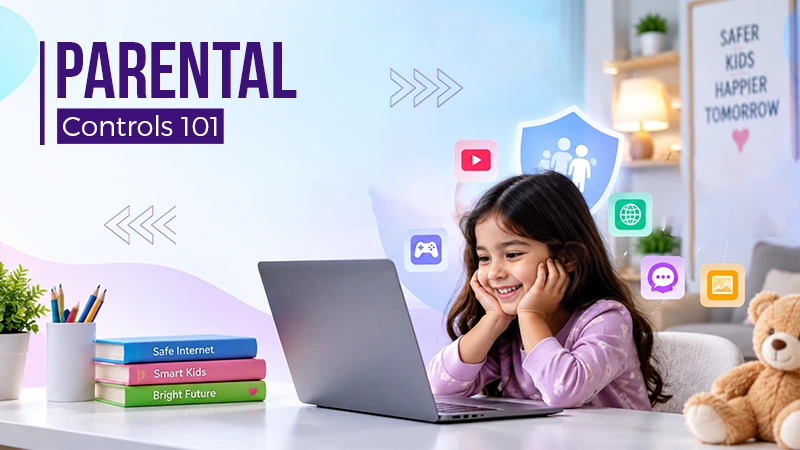
Parental controls help in keeping children safe online by restricting harmful content and managing how much time is spent on the internet.

Children’s lives are highly influenced by the digital world; for example, tablets and smartphones are now not only used for education purposes but are used for games and communication too. There are benefits of these digital tools, no doubt, but the kids are also encountering aggressive, targeted advertising, inadvertent data collection, and age-inappropriate information daily.
Read the full article to learn more about how to configure parental controls properly on the most popular platforms, the ways to block unnecessary advertising targeting your child, and how to ensure that your child’s comfortable digital space is protected and safe.

You should start your security with the general settings of your smartphone or tablet operating system. The built-in iOS and Android tools let you set clear boundaries for using techniques:
Setting basic operating system limits avoids unwanted software loading and uncontrolled write-offs.
Modern advertising networks depend on machine-learning algorithms and dynamic generation of visuals. Today, brands and marketing agencies are actively using AI creative ads on the AdFactory platform, which lets you instantly adapt banners to user interests. For adults, this increases the relevance of announcements, but child profiles need protection from algorithmic data collection.
The following steps should be taken to limit the amount of targeted advertising on children’s devices:
Eliminating personalization means that the algorithms used to provide ads do not track the child’s digital footprint.
As AdFactory experts note, video streaming and social media remain the main sources of uncontrolled content, where standard advertisements or recommended videos may include adult stories.
Transferring a child to a dedicated YouTube Kids service allows you to lock in only manually selected channels and disable the search function completely. On family devices and Smart TVs, it is advisable to activate YouTube Restricted Mode to cut potentially unsafe videos.
In the popular Roblox gaming platform and similar online games, we recommend that you set your parent PIN to change settings, disable chat with unknown users, and limit your in-game spending.
Manually checking and configuring the allowed channels remains the most reliable way to check media.
If you have different gadgets in your home, such as laptops, tablets, and game consoles, it’s easier to filter at the network level.
The network barrier blocks most ad scripts and dangerous domains even at the server request stage.
Default web browsers are designed for adults and usually display dubious banners right on the main page. For extra protection, it is necessary to install child-friendly alternative programs:
Replacing the default browser with a special software application makes sure that your child will not be able to access dangerous resources via random ad links.
Technical tools cover only some risks, not all. As a child grows older, they encounter unprotected networks and devices, so it is important to develop an informed approach to the Internet.
Describe the mechanics of advertising to your child. He must understand that a bright banner with the promise of “free bonuses” or “prizes” is a commercial scheme, which may hide a virus or subscription.
In parallel with the training, it is important to introduce simple household rules:
The principles help a child slowly develop the ability to verify the cyber risks on the Internet on their own and depend on parents when they come across those risks.
Maintaining a safe online world for kids is a difficult undertaking, involving a mixture of technology and education. The only way to check out most harmful content is to limit system functions, disable advertising targeting, and to filter at the DNS level. These tools and the open dialogue they offer can help to promote healthy digital practices and safeguard children from unwanted influences on the web.
Parental controls help in keeping children safe online by restricting harmful content and managing how much time is spent on the internet.
The best age to remove parental controls lies between 15 and 18 years. Ensure to be in talk with your child and look at maturity.
Another word for parental control is parental monitoring.
Yes. VPN can bypass parental controls and network controls.