Alan defined the four states of privacy as solitude, intimacy, anonymity and reserve.

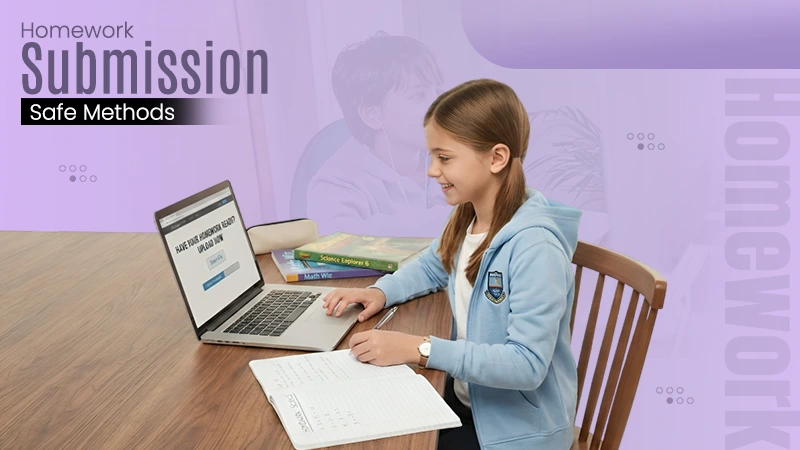
In times when tech was limited to a few areas, turning in homework meant handing in a sheet of paper to the teacher. However, with the evolution of time, this tradition has changed.
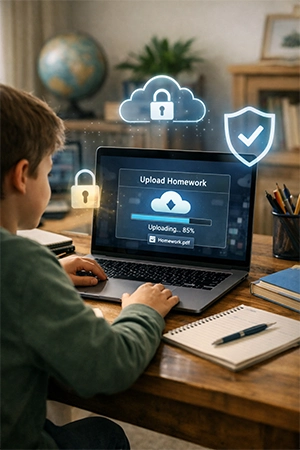
Now it frequently entails uploading a file, and that minor change quietly reveals a child’s personal information– full name, home address in a photo background, and even location data baked into a picture.
None of it is dangerous on its own, but good habits established early in life stick with you. For this reason, you need to know some ways kids can submit work safely, each one simple enough to do with a parent nearby.
Here is an article for further such details!
Key Takeaways
- Use the official learning platform of the school whenever possible. This keeps all homework submissions private and accessible only to teachers.
- Save your homework as a PDF; do not share unnecessary pages or personal data.
- When sharing homework, cloud links can expire or attachments can be password-protected for additional security and privacy.
- Teaching children simple digital privacy habits early will protect their personal information and build safer online practices for the future.
The safest option is usually the one the school already offers. Most classrooms use a learning management system like Google Classroom or Canvas, where an assignment goes straight to the teacher and nobody else.
Parent tip: Check the sharing permissions together the first time, and make sure the file is set to “only the teacher can view,” not “public link access.”
Images of homework often contain hidden information and extra clutter. Converting to a PDF removes up, and reducing the file to just the assigned pages means a teacher sees the math worksheet, not the doodles or another family’s paper underneath.
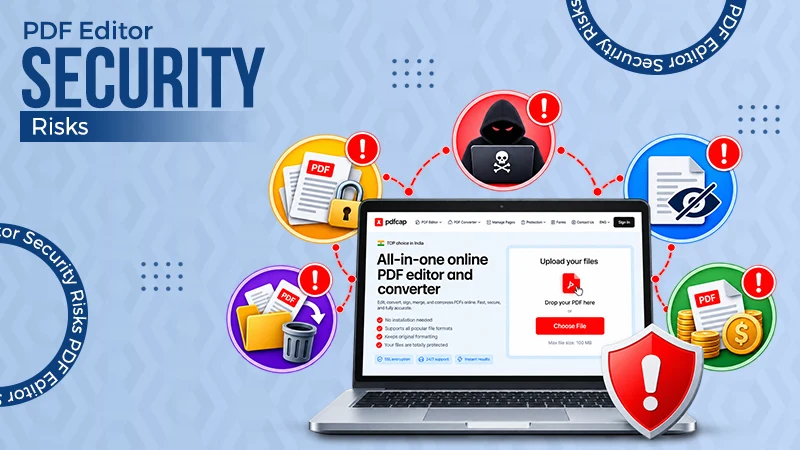
If a document comes out as one single file, a free tool to extract pages from a pdf lets kids save only the pages a teacher actually needs before sending anything. It takes a few steps and keeps unnecessary personal details out of the handoff.
Parent tip: Review the final PDF before it’s sent — a quick check catches anything that shouldn’t be in frame.
When a file is stored in cloud storage, sending a link is tidier than attaching the whole document. Better still, most services let you set a link to expire after a day or two, so it can’t be reopened by anyone later.
A temporary link is a great habit to build early, and it pairs well with the general device-safety routines covered in this guide to parental controls and safe settings.
Parent tip: Show your kid where the “link expires” option lives — it’s usually one tap in the share menu.
Sometimes emailing is unavoidable. When it is, an encrypted attachment keeps the files private even if the message lands in the wrong inbox, and the password can be shared with the teacher differently.
The FTC offers practical steps for keeping kids’ devices secure that reinforce exactly these habits.
Parent tip: Send the password by text or tell the teacher in person — never in the same email as the file.
Kids don’t need to become cybersecurity experts to stay protected online; they just need a few reliable routines. The practices you build now, while you’re working beside them, are the ones they’ll carry into every account and assignment for years to come.
That’s a greater gift than any single homework-sharing trick. Start with one approach, practice it together, and let it become second a habit.
If you found these tips useful, be sure to browse more family-friendly guides across our site.
Alan defined the four states of privacy as solitude, intimacy, anonymity and reserve.
Never post or trade personal pictures or videos. Never reveal personal information, such as address, phone number, or school name or location.
Protecting privacy is key to ensuring human dignity, safety and self-determination.
Understand how to align with state privacy laws through five key principles — transparency, consent, data control, minimization, and accountability.