Ans: To identify the processes that consume the most resources, you should open the Activity Monitor utility present in Mac to get a real-time view of your device’s performance.

You might notice your Mac running slower than usual during regular tasks like work calls or browsing. Some apps may be consuming RAM, storage, or throttling CPU resources, causing decreased performance overall.
It is important to understand and know how to fix these problems without compromising your child’s online safety through parental control apps using quick diagnostics and optimization methods.
This article explores how control apps affect performance and how you can optimize your Mac using various processes, step by step.
Key Takeaways
- Parental control apps continuously run in the background and accumulate data and cache on your device over time.
- Running a quick diagnostic test and identifying resource-heavy processes using the Activity Monitor helps figure out problems.
- It is best to reduce the number of apps that start when you open your device, as this ensures that your device powers on quickly and works without interruptions.
- Keep your device updated with the latest patches and fixes to ensure the long life of your Mac.
Parental control apps slow down your Mac for the following two reasons:
Most parental control apps are always-on processes. From the moment your Mac boots, they’re monitoring activity in real time,
such as:
Each monitoring layer uses its own share of CPU and RAM.
Parental control apps store activity logs, screenshots, and usage reports on your Mac.
Over time, this data adds up. Cache from monitoring software piles up quietly, and most parents never think to clear it.
The result: storage gets eaten up, and any existing pressure on your drive gets worse.
Before you make any changes, begin a quick diagnostic check to see what’s actually slowing down your computer.
Don’t optimize anything you see blindly, because you risk fixing the wrong thing, which might not be causing issues. When a Mac gets noticeably slow, it’s important to look at how to fix a slow Mac first.
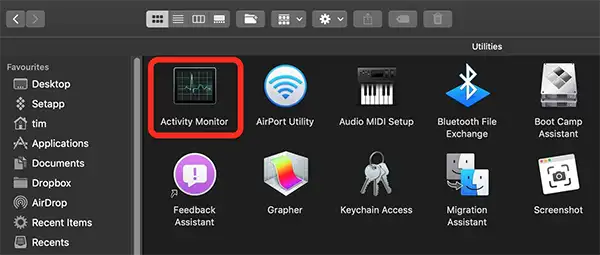
The Activity Monitor function is a built-in Mac utility, providing you with a real-time view of your computer’s performance.
To see what apps and processes affect your CPU:
You’ll likely see your browser and open apps near the top, but look for anything unfamiliar.
Parental control apps often run under process names like “agent,” “daemon,” or an abbreviated version of the app name.
Then, examine the Memory tab. High memory usage itself doesn’t always indicate that there is a problem. However, if a process consistently uses 500 MB or more, you should address it.
When you notice a process that you don’t recognize, it’s best to perform a quick web search of that name to see what it belongs to.
Low or cluttered storage can quietly affect your Mac’s performance.
To review how you’re using your space:
There, you’ll see a color-coded bar showing how your drive space is being utilized across different categories: Applications, Documents, iCloud Drive, System Data, and others.
Pay close attention to System Data and Documents. These are places where activity logs and reports from monitoring apps tend to accumulate.
Also, be sure to take a look at the Recommendations panel on this screen, as it highlights large files, old downloads, and other easy-to-delete items, giving you a simple way to make more space without having to search through them manually.
Fun Fact
If you see a process named “bird” using high CPU in the Activity Monitor, it is not a virus. It is a system process responsible for syncing your files to iCloud.
Here’s where things get practical. These four steps directly address the performance drag caused by running monitoring software.
Every app that launches at startup claims resources before you’ve even opened a browser tab. Removing the unnecessary ones can improve boot time and free up memory.
To review and manage them:
Your parental control app should remain enabled, as it needs to launch with your Mac to work properly.
Examine everything else: productivity tools, media players, and updaters often add themselves here by default, even if you don’t need them right away. Remove any that you don’t need running at startup.
macOS relies on free storage to run smoothly. This includes memory swap, system caches, app updates, and temporary files. When your drive is nearly full, performance slows down noticeably.
A good rule to follow is to keep 15-20% of your total disk space vacant at all times.
That translates roughly to:
Start with the most basic things—empty the Trash and delete apps you haven’t opened in a while.
Additionally, you can move large files to an external drive or iCloud. iCloud Drive allows you to automatically offload files from the Desktop and Documents folders. When local space is running low, it keeps your drive from filling up without you having to think about it.
If you want to know more about helpful tools that help parents get more from their Mac, see our guide on MacBook essentials for parents.
Cache files are temporary data that apps store to load faster. In small amounts, they’re helpful. Over time, they accumulate to a point where they consume meaningful storage without providing any real benefit.
To clear the cache manually:
You’ll see folders named after each app on your Mac. Delete folders for apps you no longer use, but avoid clearing cache for apps you actively rely on, unless you know what you’re removing.
Every macOS update includes performance improvements, security fixes, and bug patches that help the system run more efficiently and manage resources better.
To keep your system up to date:
You might see that no software is available for update. This means that your macOS is up to date. But if you still want to make sure that you have the latest version, click Check for Update.
Apps need regular updates, especially after macOS updates, because developers adjust them to stay compatible with the latest system changes and maintain performance. If you don’t update them, they can start causing slowdowns or glitches.
To update your apps:
You can also allow automatic updates in App Store settings, so your apps stay current without you going through the manual checks again.

You need to turn off what you don’t use and reduce how often the app syncs data in the background. Here is what it looks like:
Yes, but use them for different tasks rather than running two whole monitoring stacks at the same time. Here’s how you can split the load:
To get the most out of your setup, explore our parental controls setup guides for step-by-step configuration instructions.
A fast Mac and effective parental controls require a deliberate setup. The approach is straightforward: optimize the Mac itself with regular maintenance, then configure your monitoring app to run efficiently rather than at full resource capacity by default.
Both steps take minutes and pay off every single day. Your kids stay protected, and you get your Mac running like new
Ans: To identify the processes that consume the most resources, you should open the Activity Monitor utility present in Mac to get a real-time view of your device’s performance.
Ans: A good rule to follow is to keep 15-20% of your total disk space vacant at all times, ensuring that the performance of your device stays consistent.
Ans: Parental control applications tend to slow down your device sometimes, as they run continuously in the background and accumulate data and cache over time.
Ans: Yes, they help fix existing issues and problems of your device and maintain your privacy by keeping you secure and updated according to the latest cyber threats.