It is just to provide basic safety; various other steps need to be taken to provide full security.

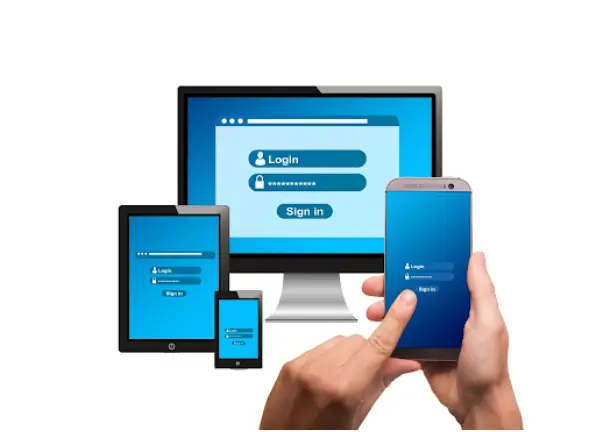
In this competitive world, it has become necessary to allow your kids to use a PC. But at the same time, it is essential to consider online risks that parents can’t always protect against.
Considering the same, an installation to set up a safer Windows PC can make a huge difference. This just demands looking for a few simple settings, from creating a child account to enabling the parental control aspects, and your kid is completely safe.
Keep reading to learn how parents can set up a safer Windows PC.
Key Takeaways
- Creating a separate child account effectively lowers the risk of unwanted system changes.
- Antivirus software can be used to add an extra layer of protection against spam and malware. It is most essential for kids.
- Safe browsing settings can ensure the kid will only get exposed to the content that is truly appropriate for them.
You should never allow a child to play games on a Windows administrator account. On a Windows machine, the administrator is the user with the highest level of influence, meaning they have permission to install programs and change crucial security settings.
A lot of parents don’t recall that Windows features child accounts that have safety restrictions as standard. Before letting your child open up to games like Minecraft, make sure they’re using an ideal account.
A lot of online scams directed toward children involve tricking them into installing malicious software such as keyloggers that track every mouse click on the machine. By misleading more receptive children, criminals can use this malware to target any adult using the machine, even if they’re using another Windows account.
Windows 11 ships with Windows Defender installed, which is a reasonably good antivirus. But, many users, especially those with children, like to install something more resistant to abuse. Bitdefender Free antivirus is a popular option because it’s lightweight and tends not to slow down older appliances.
Cybercriminals often target children with encrypted malware, concealing the dangerous EXE file as a fun game or mod. Install and manage an antivirus and run a baseline full scan before giving your child the keys to the machine. You should also ensure automatic updates are switched on.
Family safety syncs your child’s account to yours so you can do things like the following:
You can manually toggle this setting on through your Microsoft account. Make sure to match content filters to your child’s age rather than just turning it on the default. A parental control setup guide can walk you through each step of this process in case there’s any uncertainty.
Also, for a better bonding with your kid, learn what BTA means: examples and ways to rely.
Open the child’s internet browser and turn on its built-in safe browsing options and implement Google’s safe search so negative results are always filtered out. For more efficient cover across your whole household network, you can point the family PC at the family-friendly DNS service offered by Cloudflare at 1.1.1.3, which rejects adult websites before they can even load.
Despite your best efforts, it’s still very conceivable that a young child will somehow manage to install ransomware or malware onto the system. If something does go incorrectly, having a backup can save all the files on the computer. Turn on Windows File History and link it with an external drive, and put a monthly alarm on your calendar to do your data backup. This shields both important schoolwork and family documents from being lost in internet incidents.
Also, learn how AI is changing online safety for kids, with the modern ways to protect them.
At the end of the day, keeping your kid safe is not about keeping them away from evolving technology. This way, they might remain behind in the rising competition. Rather, it is about creating a safe environment so that they can use and grow without compromising security.
By setting up a safe child account, enabling the parental control settings, and following some other essential settings, parents can be stress-free and help their kids to keep shining with the technology.
It is just to provide basic safety; various other steps need to be taken to provide full security.
Create a kids account, disable adult content in the settings, and use safe search filters to ensure kids watch only appropriate content.
No tool or trick can ensure complete protection. It is advised to teach your kid about the right and ethical ways to use a PC.