Flova AI is an all-in-one video generation platform that also provides a virtual production agent that helps creators and users to turn a simple idea into a fully animated video.

Quick Answer – If you are planning to create an AI animation video, use Flova AI. It can help you turn your simple idea from a surface level into a fully edited AI video with characters and scenes.
Creating an idea into a full animation video can sound difficult when you haven’t thought about Flova AI. Turning a simple idea into animation can bring your concepts, characters, and stories to life. Animated scenes, sound, and visuals can help you explain your story easily.
Well, you can begin with just a simple script or even just a rough idea. You can also take help from Flova AI to complete your script and manage the scene. It will also help you decide which visual style will suit a particular scene.
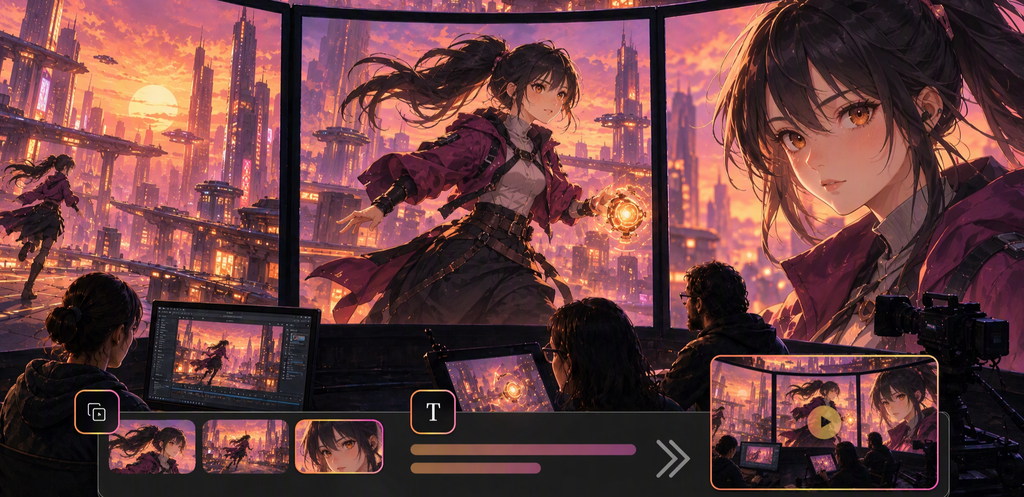
Flova AI can turn a script into animation very easily. It brings storyboarding, media generation, script development, and video editing into just one platform. You can review and improve separate scenes while generating them with Flova AI.
The script tells the story and the actions that occur in it, and a storyboard is used to plan how each scene will look on screen. Flova AI can help turn a rough idea into a clearly structured script. Creators can discuss the story with Flova Agent as they create it, then plan the script into scenes and visual sequences before making the animation.
Each scene should have its own clear purpose. You can outline the characters, actions, setting, and transitions to help plan the sequence. Flova can reuse the character and setting information you have confirmed across later shots, helping maintain a consistent look and style. This data can make it easier to connect one scene to the next and keep the AI video clear and coherent.
Pictures and sounds are used in collaboration with the story. You can produce scene imagery, add voiceovers or dialogue, and include appropriate music depending on your project and preference. The combination of these elements will contribute to a more profound viewing process.
Start with a script that demonstrates the primary concept, characters, action, and conclusion. Include a brief creative brief on who your audience is, what type of animation you would like to add, what the tone would be, and the purpose of the video.
Choose a visual style, including either 2D animation, 3D visuals, or a cartoon-style appearance. Make sure to explain the style in a way that the scenes have the same direction and look.
Step 3: Import the Script Into Flova and Break It Into Scenes
Import the script into Flova and have Flova Agent break it down in a few little more manageable parts for the storyboard. Each scene should concentrate on one action or theme. An instance is a short story that may consist of an introduction, an issue, a turning point, and an ending.
Preview the scenes you have planned for generation before creating the entire animation. Ensure that the order is sensible, the characters act in a consistent manner, and the scenes can depict the story. If any part does not align with your expectations, tell Flova Agent what you want to modify in natural language. You can review and refine the storyboard until it matches your intended direction.
Generate the planned images and moving shots with Flova AI. Review each result, including character information and how well it follows the script. You can edit separate scenes when something does not match what you had in mind. You can also open multiple conversations with Flova Agent to discuss different parts of the project separately. This is useful to keep each set of changes focused and makes the revision process more efficient.
Check whether the generated dialogue matches the script and makes sense in each scene. Listen to the voiceovers to see whether the voices suit the characters and the delivery matches the mood of the story. If anything sounds incorrect or out of place, ask Flova Agent to adjust it.
Place the scenes in the correct order and review their transitions. Check the timing, music, and finalisation, and then export the completed video in the format you use in your project.
Imagine a short story about a young girl who finds a lost bird in her garden. She offers it water, constructs a little shelter, and makes it feel better, then re-releases it into the sky.
The first scene introduces the girl and her garden. The second depicts her finding the bird, and the third scene displays how she takes care of it. The last scene is when the bird is flying away, and the girl is observing it.
Keep the girl’s appearance, the bird’s characteristics, and the garden setting consistent throughout the animation. Apply a natural flow between every action and incorporate soft music to improve the warm climax of the story.
Planning the story and its visuals makes it way easier to turn an idea or script into animation. A clear story, structured scenes, and consistent characters help keep viewers engaged throughout the video.
Flova AI can support different stages of this process, from creating the script and planning scenes to creating visuals and assembling the video. Start with a simple idea, review the results at each stage, and make modifications where needed as the story takes shape.
Flova AI is an all-in-one video generation platform that also provides a virtual production agent that helps creators and users to turn a simple idea into a fully animated video.
Flova AI starts at $19 per month for a standard monthly plan, and you can also opt for a $17 monthly plan for an entry-level personal plan.
Yes, Flova AI can turn your simple idea into a written script and plan the animation, images, and video according to your preference.