No. IP tracing is not illegal as it is a standard part of how internet communication works.

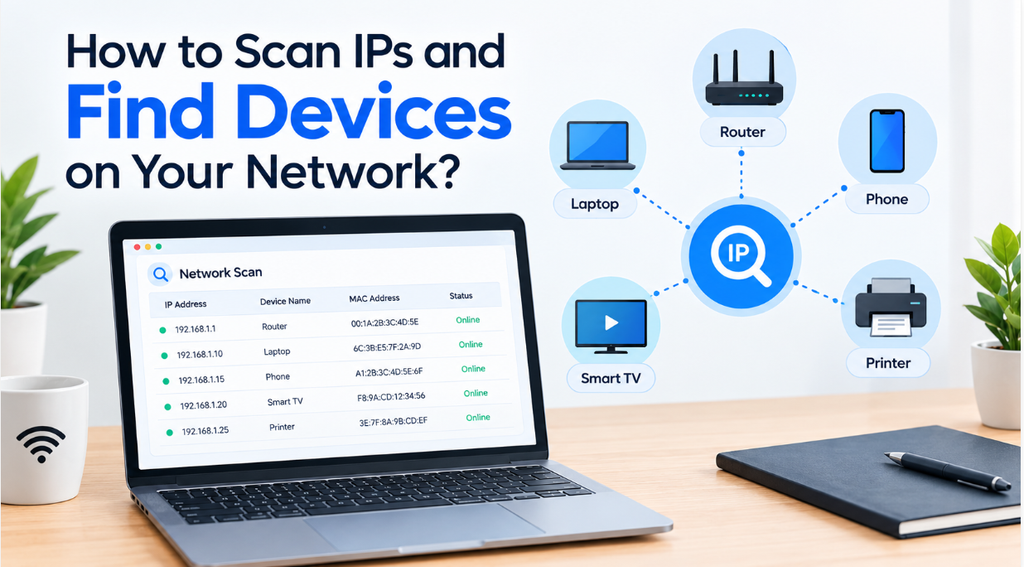
Today, network connectivity is used by most of the smart devices. You can imagine the number of devices uses Wi-Fi at your home everyday. The same thing applies to the offices and work environment too. For website networks, every user visiting a website has a different IP address.
But important thing to know is which devices are connected and whether they are safe or not?
To do these, you can easily find the devices on your network with just a simple IP scan. After that, you can check whether those IP addresses are safe or should be blocked.
An IP address is a set of numbers that is given to smart devices to let them talk to each other on a network. IP addresses are of two types: Public IP addresses and Private IP addresses.
Your network router assigns private IP addresses to the connected devices to let them talk within the local network. The public IP address is assigned by your internet service provider (ISP), which allows the devices communicate on the internet (outside your local network).
For instance, if you are browsing on the internet using a smartphone, you are connected to the internet via a public IP address. You can easily find and check your public IP address by visiting the ‘My IP Address’ tool. You can see your device’s private IP address in the device’s network settings.
The simplest way to find out which devices are connected to your network is to visit the router settings. Your router usually has a list of connected devices. You can open its admin page and look for options such as:
The list may include the device name, IP address, and MAC address.
You can also install and use network scanner software. It identifies IP addresses on your network and finds the ones that respond. Some scanners also show the device name, MAC address, and even open ports.
Many large businesses that need to keep their networks secure usually want to check details of IP addresses connected to their networks. They want to check if there are any suspicious or unnecessary IP addresses connected to their network.
This is where an online IP checker can be helpful.
After you find an IP address, you can use an IP address checker to look it up. Such a tool can give you more data about a public IP address. For example:
This can help you know where an IP comes from and which network may control it.
However, there is one crucial point to remember.
You cannot get public location information from a private IP. Private IPs only work inside your local network. An online IP checker often works with public IP addresses.
Sometimes an IP scan may show a device that you are unaware of. Do not think that it is a security threat right away.
First, check the device name. Then check its MAC address and manufacturer. You can find the manufacturer by doing a MAC OUI Lookup.
Consider all the devices that may connect to your network.
You can also switch off your own devices one at a time. Then scan the network again. This can help you identify which device is associated with a particular IP device.
If you still cannot identify a device, you can change your network credentials. This will disconnect devices that do not have the new credentials.
Not always. Some devices may remain offline during the scan. Others may not reply to certain scan requests. Your network may also have more than one subnet.
For this reason, an IP scan should not always be treated as an entire list of every device. Your router’s connected-device list can also help you get a nice view of your network.
Scanning your network can help you view which devices connect to your Wi-Fi. Your router or a network scanner can help you find their local IP addresses.
However, an IP address alone may not tell you much about a device. An online IP checker can add additional information when you have a public IP address to check.
No. IP tracing is not illegal as it is a standard part of how internet communication works.
A VPN often masked the real IP address, but it cannot hide your identity when you log in with your real details.
You find device name by IP address by using command prompt on windows or a network scanner.