
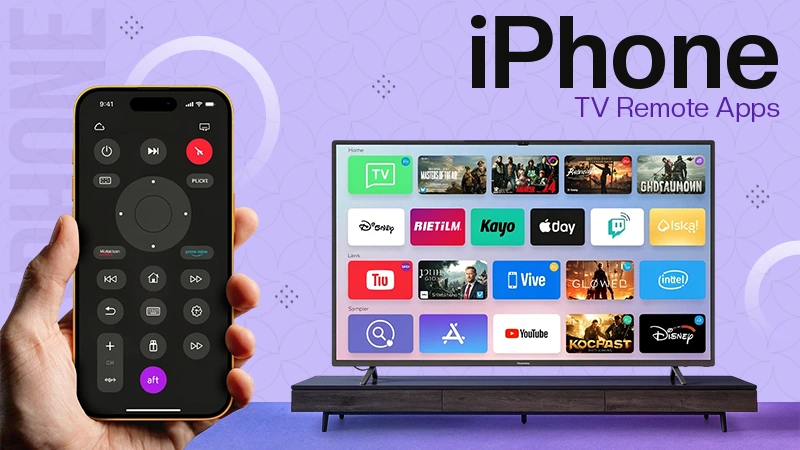
Losing the TV remote is one of those small problems that can become surprisingly annoying. The remote may be somewhere under the sofa, hidden between cushions, left in another room, or simply out of batteries. Fortunately, if you have an iPhone, you may not need the physical remote at all.
A modern iPhone can work as a TV remote through a dedicated app. Depending on the application and your TV model, you can change channels, adjust the volume, navigate menus, launch streaming services, type text, and perform many of the functions normally handled by a physical remote.
But with so many remote-control apps available in the App Store, which one should you choose?
Here are some of the most important things to consider when looking for the best iPhone TV remote app, along with a closer look at TVRem and several alternative options.
Before installing a remote app, it is worth looking beyond the number of features. A good application should make controlling a TV easier rather than simply replacing one complicated interface with another.
Several factors are particularly important.
The first thing to check is whether the application supports your television or streaming device. Some remote apps are designed specifically for Samsung TVs, Roku devices, or Apple TV, while others are intended to work with multiple brands.
A universal application can be particularly useful if you have several TVs at home or use different streaming platforms.
Nobody wants to spend 20 minutes configuring a remote app just to change the volume.
Most Wi-Fi-based remote applications require the iPhone and TV to be connected to the same Wi-Fi network. After that, the app should be able to discover the television and guide you through the pairing process.
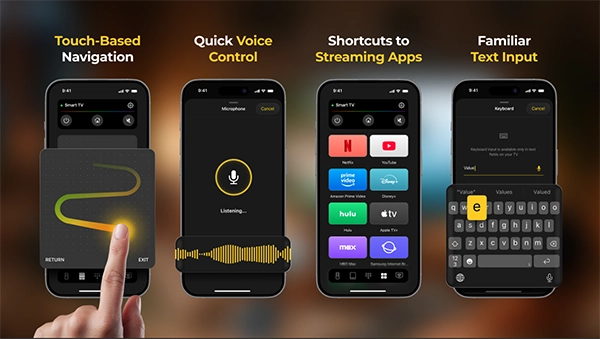
The best remote apps usually provide more than a collection of virtual buttons. Touchpad navigation can make it easier to move around Smart TV menus, while a familiar button layout can be useful for users who prefer the traditional remote experience.
Typing on a television with directional buttons can be frustrating, particularly when searching for movies or entering passwords.
An iPhone-based remote has an obvious advantage here: you can use your phone’s keyboard instead of the on-screen TV keyboard.
If you regularly use Netflix, YouTube, Prime Video, or other streaming services, shortcuts can save a few steps every time you turn on the TV.
For users who want one application that can handle different Smart TV platforms, TVRem is one of the more interesting options to consider.
Rather than focusing on a single television manufacturer, TVRem is designed as a universal remote application for iPhone and iPad. It supports a range of Smart TVs and streaming platforms, including Samsung, LG, Roku, Fire TV, Android TV, Google TV, and Apple TV. Compatibility can vary by model and platform, so checking your particular device before relying on the app is still a good idea.
The application is particularly useful for people who want several ways to control their television.
TVRem offers a traditional button-based interface, but it also provides touchpad navigation. This allows users to swipe through menus and tap to select items instead of repeatedly pressing directional buttons.
For Smart TV interfaces designed around scrolling and app grids, this can feel more natural than using a conventional remote.
There is also keyboard input. Instead of slowly selecting individual letters on the television screen, you can type search terms from the iPhone.
This becomes especially useful when searching for a specific movie, TV show, YouTube video, or application.
Another useful feature is voice input. On supported devices, TVRem can provide voice-based control through compatible voice assistants, while the iPhone itself can also be used for faster text input.
This is not necessarily something everyone will use every day, but it can be convenient when searching for content or navigating a TV without reaching for the physical remote.
TVRem also puts shortcuts to popular streaming services within the remote interface. Netflix, YouTube, Prime Video, and other installed applications can be accessed without navigating through multiple menus on the television.
For someone who mainly uses their Smart TV for streaming, this can make the remote feel more practical.
One of TVRem’s biggest advantages is that it is not limited to one TV manufacturer.
According to its current compatibility information, the application works with Samsung and LG Smart TVs as well as Roku, Fire TV, Android/Google TV, and Apple TV devices.
That makes it particularly interesting for households with more than one type of television or streaming device.
The application is available for iPhone and iPad and requires iOS 17 or later.
App Store: TVRem Universal TV Remote on the App Store
If you primarily use an Apple TV, Apple’s built-in remote functionality is another obvious option.
The Apple TV Remote is integrated into iOS through Control Center, so iPhone users do not necessarily need to install a separate third-party application.
Its main advantage is simplicity. If you already have an Apple TV and only need basic navigation and playback controls, the built-in solution can be more than enough.
The interface supports familiar controls for navigating menus and controlling playback. Since it is part of Apple’s ecosystem, there is also no need to maintain a separate remote application.
The limitation is equally straightforward: it is primarily intended for Apple TV and compatible AirPlay devices rather than being a universal solution for every Smart TV.
Therefore, it makes the most sense for people who are already invested in Apple’s TV ecosystem.
Another category worth considering is official remote applications provided by TV manufacturers.
Samsung, LG, and other manufacturers offer their own solutions for controlling compatible televisions from a smartphone.
The main advantage is that these applications are designed specifically around the manufacturer’s ecosystem. They can therefore provide features that may not be available in a generic remote app.
The disadvantage is that you may need a different application for every television brand.
For example, if you have a Samsung TV in the living room and an LG TV in the bedroom, using manufacturer-specific apps means maintaining two separate solutions.
A universal application such as TVRem can be more convenient in this situation because it aims to bring several platforms together in a single interface.
Users with Roku or Fire TV devices can also find dedicated remote solutions.
These can be useful if your entire entertainment setup is based around one platform. Dedicated applications often include features such as navigation, playback controls, keyboard input, and access to platform-specific functions.
However, the same limitation applies: a platform-specific remote is less useful if you frequently switch between different types of devices.
For example, someone using a Roku TV at home may have little reason to install a universal remote. On the other hand, someone who owns a Samsung Smart TV, Roku player, and Apple TV may prefer having one application capable of handling several devices.
There is no single remote application that is perfect for every iPhone user.
The best option depends mainly on your television and how you use it.
Compatibility should always come first. A remote app with dozens of features is not particularly useful if it cannot connect to your TV.
The setup process is generally straightforward for Wi-Fi-based remote applications.
With TVRem, for example, the basic process involves installing the application, connecting the iPhone and television to the same Wi-Fi network, opening the app, and selecting the TV from the available devices. Depending on the device, you may then need to enter a pairing code displayed on the television.
Once connected, the iPhone can be used for everyday TV control.
If the television does not appear, the first things to check are whether both devices are connected to the same Wi-Fi network and whether the TV allows control from mobile devices.
Some televisions may also require specific network or device-access settings to be enabled.
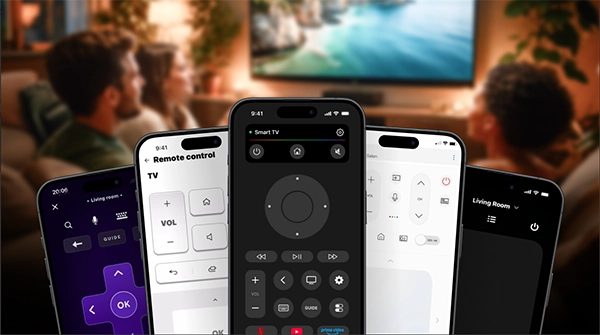
This is an important distinction when choosing a remote app.
Most universal Smart TV remote applications communicate with the television through the local network. As a result, the iPhone and TV generally need to be connected to the same Wi-Fi network.
TVRem, for example, uses the local Wi-Fi connection to discover and communicate with compatible devices.
This is different from traditional infrared remotes, which send commands directly to the TV using an infrared signal.
Since modern iPhones do not function as conventional infrared TV remotes, Wi-Fi is the more common method for third-party iPhone remote applications.
It depends on the situation.
A physical remote is still useful and may provide dedicated buttons that some people prefer. However, a phone has several practical advantages.
You are much less likely to leave your iPhone somewhere across the room. It also does not require a separate set of batteries, and typing with an actual phone keyboard is considerably easier than navigating an on-screen keyboard with directional buttons.
For Smart TVs, an iPhone can also provide additional functionality that a basic physical remote may not have, including touchpad navigation, voice input, and shortcuts to streaming applications.
The biggest advantage may simply be convenience: your phone is usually already in your hand.
The right choice ultimately depends on the devices you own.
Apple TV users may find Apple’s built-in remote perfectly adequate. People who only use one particular TV brand can also benefit from an official manufacturer application.
But if you’re looking for a universal iPhone TV remote that works across several Smart TV platforms, TVRem is worth considering.
Its combination of traditional controls, touchpad navigation, keyboard input, voice features, streaming shortcuts, and broad compatibility makes it a practical option for everyday use. It is also available as a free application, which makes it easy to try without committing to a subscription.
Ultimately, the best iPhone TV remote is the one that connects reliably to your television and makes everyday navigation easier. For many users, replacing a lost physical remote with an app on the phone they already carry may be the simplest solution.


