When I first tried an AI video generator, I expected magic. What I got was confusion—dozens of sliders, unfamiliar terms like “motion coherence” and “temporal consistency,” and a final output that looked nothing like my vision. If you’ve felt similarly lost, you’re not alone. Many beginners dive into AI tools expecting instant results but quickly hit a wall of complexity.
That’s where MakeShot changes the game.
Unlike fragmented platforms that force you to juggle separate tools for video and image creation, MakeShot unifies powerful models like Veo 3, Sora 2, and Nano Banana in one intuitive studio. This isn’t just another AI wrapper—it’s a thoughtfully designed workspace built for creators who want professional-grade output without needing a film degree or coding skills.
Let’s walk through how to start strong, avoid common pitfalls, and actually enjoy using an AI video generator from day one.
The biggest mistake new users make is treating AI like a black box: type a prompt, press generate, and hope for the best. But even the most advanced AI video generator needs clear direction.
Early on, I assumed longer prompts were better. I’d write paragraphs describing lighting, camera angles, mood, and dialogue—only to get chaotic, disjointed clips. What I didn’t realize was that AI models respond best to structured simplicity.
For example, instead of:
“A futuristic city at sunset with flying cars, neon signs reflecting on wet pavement, soft ambient music, and a lone figure walking slowly…”
Try:
“Cinematic shot of a rainy cyberpunk street at dusk, lone figure walking, neon reflections, ambient synth soundtrack.”
This focused approach works especially well with Sora 2, which excels at cinematic storytelling when given concise visual cues. Similarly, Veo 3 performs better with clear action verbs and scene context—especially since it handles native audio generation, including synchronized dialogue and sound effects.
Actionable tip: Start with 10–15 word prompts. Focus on what you’re showing, where it’s happening, and how it should feel. Refine from there.
You don’t need technical expertise to create compelling content with MakeShot. Here’s how to go from zero to publish-ready in under an hour:
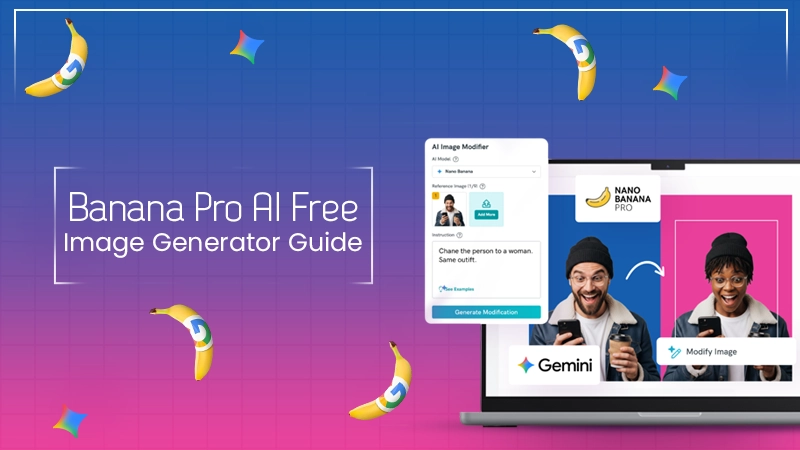
I once needed a hero image for a client’s eco-friendly skincare line. Instead of booking a photoshoot, I used Nano Banana Pro with two reference images of their bottle and a mood board. In three generations, I had a photorealistic shot of the product on a sunlit bathroom counter—with dewdrops and soft shadows. Total time: 22 minutes.
Myth 1: “More AI = Better Results”
Just because MakeShot offers Sora 2, Veo 3, and Nano Banana Pro doesn’t mean you should use them all at once. Each model has strengths. Trying to force a single project through every engine leads to wasted credits and inconsistent style.
Instead, match the tool to the task. Need B-roll for a travel vlog? Veo 3’s photorealistic scenes with ambient audio are perfect. Creating ad creatives for an e-commerce launch? Nano Banana Pro’s hyper-realism converts browsers into buyers faster than generic stock photos.
Myth 2: “AI Replaces Creativity”
AI doesn’t eliminate creative work—it shifts it upstream. Your value now lies in prompt design, visual direction, and editorial judgment. The best results come from iterative refinement, not one-shot generation.
I’ve learned to treat each output as a draft. If a Sora 2 clip feels too slow, I adjust the prompt to include “dynamic camera movement” or “quick cuts.” If a Nano Banana image lacks texture, I add “matte finish, fabric grain visible” to the next attempt.
Myth 3: “It’s Only for Social Media”
While MakeShot shines for Instagram Reels or TikTok, its real power emerges in professional contexts. Marketing teams use the AI video generator to A/B test ad concepts in hours, not weeks. Filmmakers generate establishing shots or VFX elements without green screens. E-commerce brands prototype seasonal campaigns before committing to photo shoots.
The platform’s unified asset library means your brand colors, logos, and character references stay consistent across videos and images—something fragmented tools can’t offer.
Adopting an AI video generator like MakeShot isn’t just about keeping up with trends. It’s about reclaiming time and budget.
Consider this: a single professional product video can cost $2,000–$10,000 and take weeks. With MakeShot, you can generate multiple high-quality variations in a day for a fraction of the cost. That agility lets small teams compete with enterprise-level production value.
And because you own all outputs outright, there’s no licensing limbo. Use your AI image creator assets on merchandise, ads, or client deliverables—no legal headaches.
But perhaps the biggest win is creative confidence. When experimentation costs almost nothing, you’re more willing to try bold ideas. That thumbnail that seemed “too weird”? Generate it. That surreal transition for your YouTube outro? Test it with Veo 3. Fail fast, learn faster.
Remember, mastery isn’t about knowing every setting. It’s about understanding how to guide the AI toward your intent. And with a unified platform like MakeShot—housing top-tier engines like Sora 2, Veo 3, and Nano Banana Pro—you have everything needed to turn ideas into professional content, fast.
So if you’ve been hesitating to try an AI video generator, now’s the time. Skip the overwhelm. Start simple. And let your creativity lead—not the tech.