Unwanted background noise can quickly ruin even the most brilliant video if the audio is not of good quality. It is not important whether the noise is caused by ambient sounds, wind, or static interference; the most important thing is that your audio must be clean before it is used in the final product. The CapCut app makes this job much easier with its integrated instruments, which allow for a more convenient process of reducing or removing noise from the background in its mobile app, desktop software, and online editor.
On the other hand, if you want a solution that is more precise and powerful, EaseUS Online Vocal Remover is a more suitable alternative. It also features a Free AI Stem Splitter, which enables you to separate vocals, drums, guitar, bass, piano, and any other part of the audio from an audio file—this is great for creators who need detailed control of their sound.
Here is a guide on how to get rid of background noise inCapCut, as well as when it would be more suitable to choose EaseUS for better results.
Methods to Remove Background Noise
Unwanted noise from the background, that is caused by a buzzing fan, wind, static or by voices coming from far away, can be of a very low level, and in the end, that will result in your videos being of very low quality. If you are a content creator, teacher, marketer, or even a casual user, the distracting audio will only make your message less clear, and the video will feel less professional.
CapCut has gone viral as a free video editing software tool due to its accessibility and convenience, in addition to many other reasons. Furthermore, it is a cross-platform video editor that can be accessed on the web, desktop (Windows and macOS), and mobile (iOS and Android), providing uninterrupted, seamless editing across all devices. Its Noise Reduction feature is the most vivid among all, and it is based on AI.
1. Reduce Background Noise on CapCut Web
Step 1. Upload your video
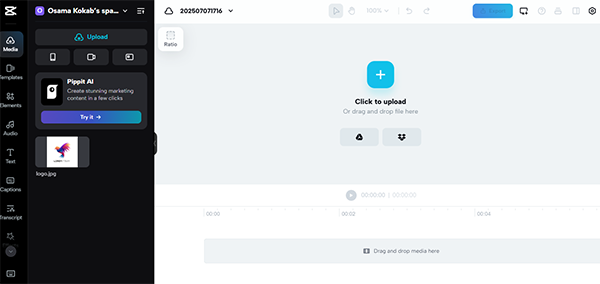
Go to the CapCut Web, log in, and press the “Click to Upload” button to browse your computer for a video. Another method is to simply drag the file to any place within the workspace. After that, move the video down to the timeline for editing.
Step 2. Enable noise reduction
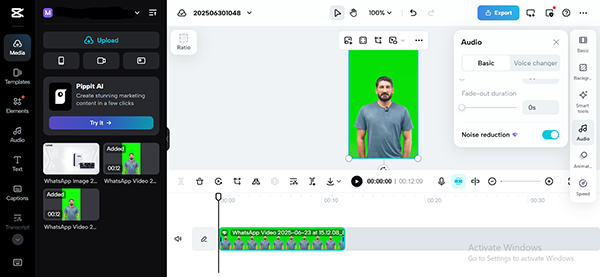
Go to the “Audio > Noise Reduction” option. CapCut will automatically recognize and remove background noise from the audio of your video.
Step 3. Preview and export
Click the “Export” button at the top. Choose the resolution you want and indicate the folder to save the file. After tha,t click download to get a clean video.
2. Eliminate Background Noise on CapCut for Windows/Mac
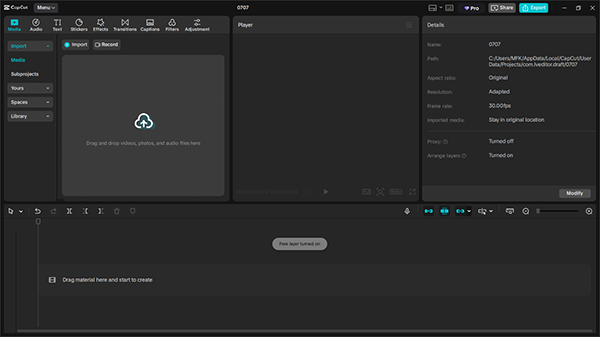
Step 1. Start a new project and import your video
Launch CapCut on your computer, log in, and click on “New Project.”
Click on the “Import” button or drag the video file into the editor. After that, drag the video onto the timeline to start editing.
Step 2. Apply noise reduction
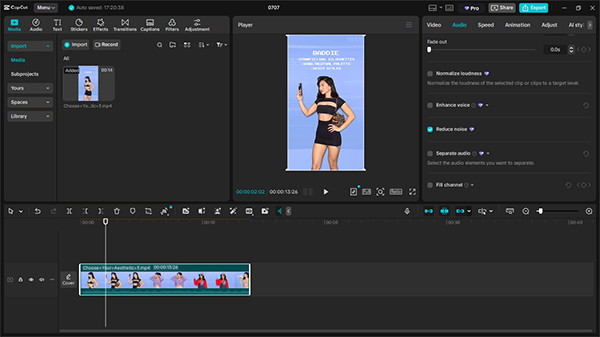
Go to the “Audio” tab and find the “Reduce Noise” toggle. Activate it to have the background audio automatically cleaned.
Step 3. Preview and export your video
If you are satisfied, click “Export.” Select your resolution (e.g., 1080p or 4K), format (MP4 or MOV), and location, then export the final video.
3. Clean up Background Noise on CapCut Mobile
Step 1. Open a new project and select your video
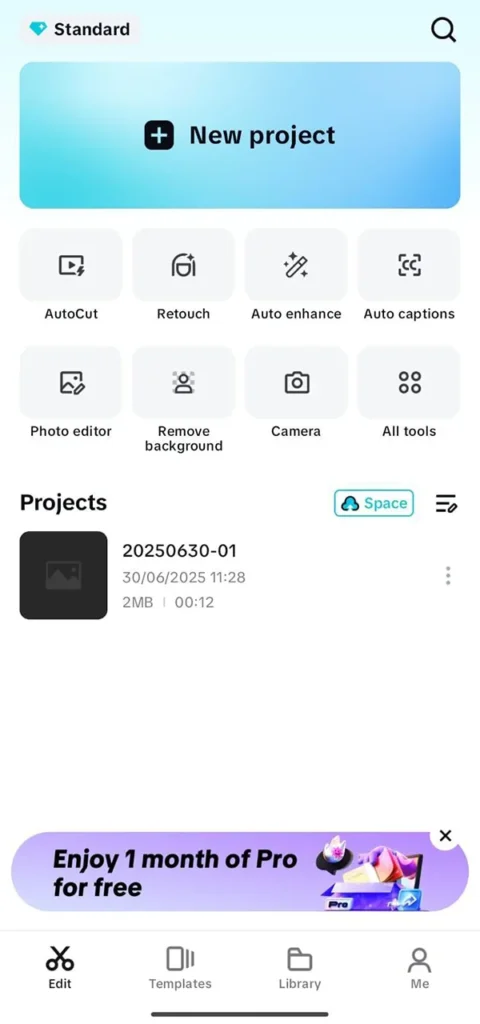
Launch the CapCut app and tap “New Project.” Then pick the video from your phone’s gallery that you want to edit. The video you add will be on the timeline for editing.
Step 2. Turn on the noise reduction feature
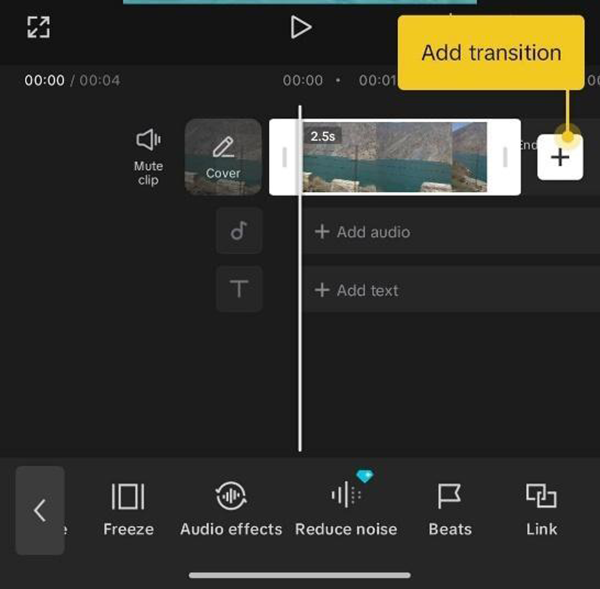
Tap on the video clip in the timeline to access the editing menu. Next, tap “Edit” and move across the bottom options until you see “Reduce Noise.” A single tap will activate the function—CapCut is like a helper, and it gets rid of the background noise for you.
Step 3. Save the edited video
Tap the “Export” button located in the top-right corner to store the final video in high quality on your device.
Online Alternative: EaseUS Online Vocal Remover
If you need a fuss-free internet-based solution for clean voice and vocal extraction, the EaseUS Online Vocal Remover is a viable alternative to the built-in tools of CapCut. This browser-based tool, which relies on advanced AI models, can remove noise in only a few steps without any complicated software or installations. In case you intend to create karaoke tunes, podcast background music, or remixes, the program will provide you with the precise and quick vocal isolation you need.
Because of its online-based processing, users do not need to have any special hardware — the whole separation operation is done online. The software is designed to work with many formats (MP3, WAV, MP4, FLAC, etc.) and is also available on multiple platforms such as web, iOS, and Android.
Key Features
Automatically recognizes and extracts vocals from music or noise.
Able to work with files of common formats such as MP3, MP4, M4A, MOV, and WAV.
No need to install any software, just do it online, which is faster.
People can just enter the link and get the vocals from the source without recording.
Steps to use the EaseUS Online Vocal Remover
EaseUS Online Vocal Remover is a straightforward tool that enables you to extract vocals or instrumentals from any file without any hassle. Here are the steps on how to do that:
Step 1: Upload your audio or video file
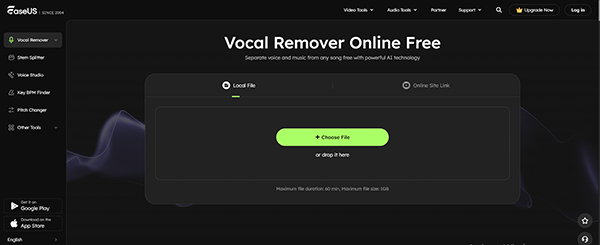
Initially, go to the EaseUS Online Vocal Remover main page, then click on “Get Started.” Next, you can either select a file from your device or copy and paste the link from YouTube or SoundCloud.
Step 2: Choose the track elements to separate
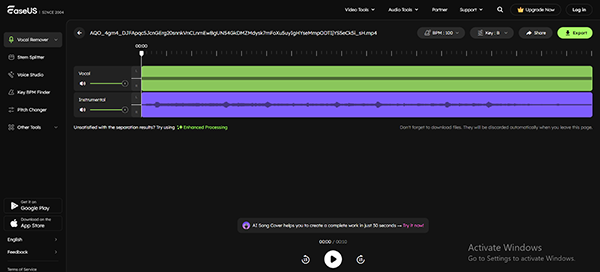
Upon the completion of the uploading process of the file, EaseUS can identify the various parts (vocals, drums, bass, piano, and so on) of the audio using the AI-powered stem separation engine.
Step 3: Preview and export your results
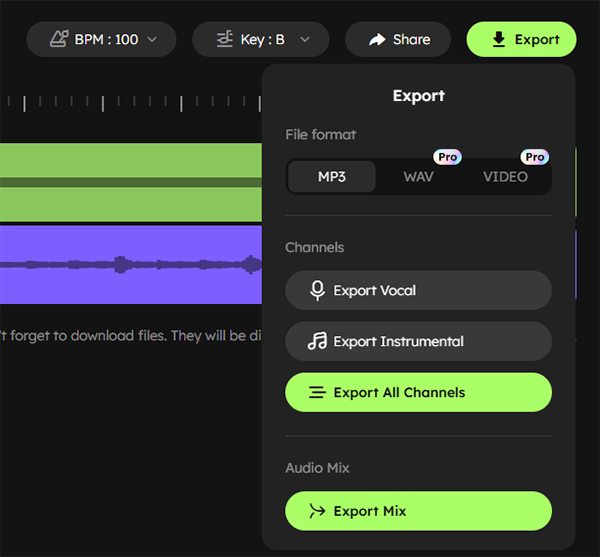
You’ll receive two tracks: Vocal and Instrumental. Click on the “Export” option to save your file as an MP3 or WAV audio output.
Conclusion
Elimination of background noise is crucial if you wish to make videos that are clear and of professional sound quality. CapCut simplifies the task by utilizing its built-in Noise Reduction feature that is compatible with all devices and platforms. If you are creating a vlog, tutorial, or promotional content, you still need to use CapCut’s AI noise removal feature, as it will not detract from your main idea.
If you want to have more control over the process or require advanced audio separation, EaseUS Online Vocal Remover is a better-suited option. It grants you full access to its AI engine via the web and lets you separate or get rid of any vocals, instruments, and sounds with just a few clicks.
FAQs
Does CapCut remove all types of background noise automatically?
CapCut’s noise elimination feature is the most common background noise that it can handle, namely, wind, static, and humming ambience. Still, the tool is not perfect and may leave some parts of a layered or complex noise. In cases like this, a professional program such as EaseUS Online Vocal Remover can yield more satisfying results.
Will background noise removal affect voice quality?
If noise reduction is used in moderation, it usually keeps the voice clear very well. However, if the noise removal feature is used excessively, it can slightly alter natural tones.