| Table of Contents:Agree the rule firstTurn the rule into a visual explanationReview togetherFAQs |
Write a simple single sentence to reflect the rule you have made with your child. The video comes afterwards. Sit together and decide what the rule covers and when it applies. This rule requires a simple explanation that your family actually uses. A rule that fits in one sentence is a rule a short clip can carry. A rule that needs three exceptions belongs in a more extended conversation, not in an explainer.
As an example, a family might agree: “Tablets rest on the charging shelf after dinner.” That sentence names the object, the place, and the point, and it invites one step only. See what it bypasses. It contains no threats, no shaming, and no comparison with siblings or friends. Rules prepared as shared household routines are easier for a child to accept than rules phrased as disciplines, and the explainer you construct later should keep precisely that manner.
To prepare the original specimen, draw a generic tablet beside a common charging shelf on a basic background. Use large, simple shapes, a blank screen, and no names, faces, or recognisable room attributes. Export a clean still with space for captions.
With the original graphic ready, open Seedance 2.5, prefer the image-to-video workflow, and upload the still. Check the specified model and available framing, choose a short available duration, and enter the prompt below to order one small motion.
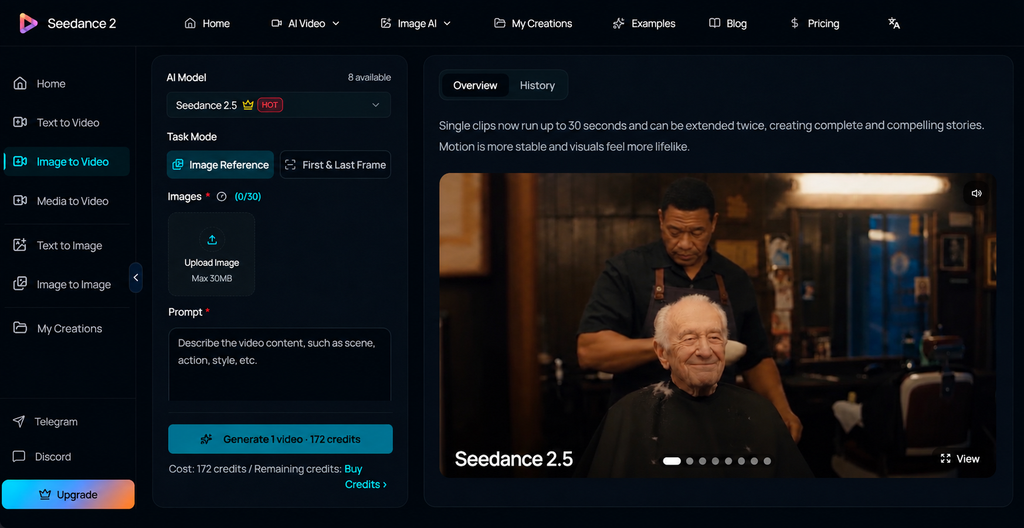
Duplicate movement prompt: “Animate the provided generic tablet-and-shelf setup. The tablet moves a short distance onto the shelf and comes to rest. Fixed camera, slow movement, amiable muted shades. Preserve the objects and background; no people, hands, screen content, or generated text.”
Generate a draft and review the tablet and frame. If the tablet curves or floats unnaturally, use a steady tablet and request only a subtle change in background light. Download a suitable version and, in an external editor, place “Tablets rest on the charging shelf after dinner” over the obtained attempt, then add the agreed safety card. Keep both legible without sound.
A speculative storyboard for the example contract looks like this:
Warm colours and neutral transitions support the exchange without acting. Do not create a child, do not recreate a scary message, and do not show chat text, photos, or anything from a genuine account. Generic entities hold the rule just as clearly, and they protect everyone’s privacy.
Before the video is shown to your child, a parent ensures every feature. Check for privacy first: no faces, no names, no identifiable rooms, nothing that specifies your family. Then check the language for age group, and verify the captions against the contract itself, word for word. If the extra objects add animation you did not agree to, or the card violates the rule, correct it before anyone watches.
Then watch it together and treat the viewing as the authentic product. The clip opens the conversation; it does not close it. A simple conversation card benefits:
“What does our rule mean? Who can you ask for help? What should we change together?”
Listen to their answers. Be honest about whether they understand. If your child explains the rule differently from how you meant it. The explainer has shown you a gap in their understanding, and the agreement itself can be adjusted. Keep the video short and accurate. The video can be revisited when changed in routine. The goal is a child who understands the rule and knows which adult to approach, and that knowledge comes from the conversation, with the video playing a small part.
Keep the clip on a family device and reconsider it when the agreement changes. Ask your child to explain the rule in their own words, then revise vague language together.
Can AI complete an entire screen time video?
AI can be employed to generate scripts, images, subtitles, and editing. You still require to inspect the finished video to ensure it is accurate, privacy, reasonable in tone and appropriate.
What do I need to include in my screen time video?
Include information about the rule, when it applies, what matters as screen time, a warning that they should stop, where the gadgets travel, and what transpires subsequently.
Should children be involved in creating the video?
Yes. They can check the language used, give examples of realistic troubles, and pinpoint any areas that are vague. This will help them understand and follow the agreement.
Should all families have the same screen time limits?
No. The recommendation evaluate the age of your child, what they are doing, your family’s essentials, what they’re watching, how much sleep and physical activity they’re getting and their routine.